
Smart Printer: Mobile Print
AstralerTools
4.22.20K Reviews
- Version
- 4.2.2
- Installs
- 1.00M
- Age Rating
- Everyone
Screenshots
Our Review of Smart Printer: Mobile Print
 Analysis by Appyee
When I need a paper copy and my laptop isn’t nearby, a phone-to-printer app can save a trip across the house or a last-minute scramble. Smart Printer: Mobile Print is built for that practical gap: it gives mobile users a way to send work to a Wi-Fi printer without making a computer the middle step. My overall view is that it is appealing when your printer and phone cooperate, but it is best approached as a convenient extra rather than a guaranteed replacement for a printer’s own app or built-in mobile printing.
Printing from a phone, with a few caveats
As a free tools app from Astraler, it sits in a useful space between a phone’s basic print options and manufacturer-specific software. The idea is simple: find a compatible printer, choose something on your phone, check the job, and send it. That can be a welcome shortcut for a boarding pass, a form, or a page someone has just shared with you. The app has an average rating of 4.1 from around 51,000 ratings, and more than a million installs, which suggests that mobile printing is a familiar need for plenty of people.
Its stated reach of over a thousand Wi-Fi printer models is an important starting point, but compatibility is not the same as a flawless connection with every printer. The printer needs to be available to the phone over the network, and the result can depend on the model and how the local Wi-Fi is set up. I’d check that the printer is connected to the same network as the phone before troubleshooting the app; this simple step can prevent a lot of unnecessary tapping.
Where the shortcut is most useful
The clearest reason to keep a mobile printing tool around is not printing every day; it is avoiding a detour when a small, time-sensitive job appears. Imagine receiving a form in a message while getting ready to leave. If the printer is already on the home network, opening it on the phone and sending it directly can be easier than forwarding it to a computer, signing in there, and locating the file again.
This is also handy in a shared household where one person’s laptop is unavailable, or for someone who receives documents on a phone and only occasionally needs paper. I would treat it as a practical bridge between digital files and a home printer, especially for one-off jobs. For long documents or work where exact layout matters, I’d still review the file carefully and use a computer if that gives me more control.
Compatibility is a starting point, not a promise
The headline benefit is broad Wi-Fi printer support, but the most useful question is whether your particular printer can be found and used reliably on your network. A printer’s age, network setup, and available mobile-printing support can all affect the experience. If the app does not discover the printer straight away, I’d first check that both devices are on the same Wi-Fi network, then confirm that the printer is awake and ready. Those checks are more sensible than repeatedly reinstalling an app before ruling out a network issue.
It is also worth thinking about where the printer is connected. A printer plugged into a computer by USB is not automatically available to a phone in the same way as a Wi-Fi printer. If your main setup depends on a direct cable connection, a manufacturer’s software or the computer itself may be the more dependable route. The app’s broad model support is most relevant when the printer can be reached over Wi-Fi.
How it fits beside built-in and brand-specific options
Most people already have at least one alternative: the print option built into their phone, or the printer maker’s own app. Built-in printing can be the simplest choice when it recognizes the printer and offers the controls you need. A manufacturer’s app may be a better fit if you want settings tailored to one brand or need to manage a printer beyond sending a basic job.
A separate tool like this makes more sense when you want one place to try printing across different supported models, particularly in a home with more than one printer or when you help relatives with different equipment. That convenience comes with a trade-off: a general app may not expose every setting that a printer maker provides. If choosing paper, color, or layout precisely is central to your task, compare the available controls before relying on it for a final copy.
Make a quick test part of your setup
One useful habit is to test the connection with a low-stakes page before you need an urgent printout. A short document lets you confirm that the printer appears, that the job reaches it, and that the output looks right without risking a precious photo paper sheet or a lengthy document. If you print photos, try one image first and check the result in ordinary light; a phone preview can help with framing, but it cannot guarantee that the printer’s colors will match the screen.
For documents with several pages, I’d check page order and margins before sending the whole job. A preview is valuable because it gives you a chance to catch an awkward crop or an extra blank page before using paper and ink. It is a small step, but it matters more than rushing through the final print command.
What to expect from the free app
The app is free to install, while in-app purchases range from $1.99 to $99.99 per item. That is a broad spread, so I would look closely at what an optional purchase unlocks before paying rather than assuming every tool is necessary. If your needs are occasional and straightforward, try the basic workflow first and judge it by whether it connects to your printer and handles the files you actually print.
It is rated for Everyone, and the current version is 3.3.0, with Android 8.0 as the stated minimum operating-system requirement. Those details make it easier to decide whether an older Android phone is a candidate, but they do not remove the need to check your printer and network. The app has also accumulated around 1,600 written reviews; I see that as a useful sign of an established user base, not a guarantee that every printer behaves the same way.
When I would choose another route
I would skip a third-party printing app if the phone’s built-in print service already works smoothly with my printer and gives me the settings I need. I would also use the printer maker’s app when I depend on brand-specific tools, or turn to a computer when a document must preserve complex formatting exactly. If your printer is old, USB-only, or troublesome on Wi-Fi, the convenience promised by mobile printing may be outweighed by setup friction.
That limitation is worth keeping in perspective: this kind of app depends on a working connection among the phone, the printer, and the local network. A stalled job does not always mean the app itself is at fault. Checking the printer’s status and network connection first can help distinguish a setup problem from an app problem, and can save time before you repeat the same print attempt.
Getting Started with Ease
Downloading and setting up Smart Printer: Mobile Print was as easy as pie. Available for both Android and iOS, the app weighs in at a modest size, so it doesn't hog storage space. Once installed, I was greeted by a clean and intuitive interface that guided me through connecting my printer. Whether your printer is Wi-Fi enabled or connected via USB, the app provides step-by-step instructions that even the least tech-savvy person can follow.
A Wide Range of Features
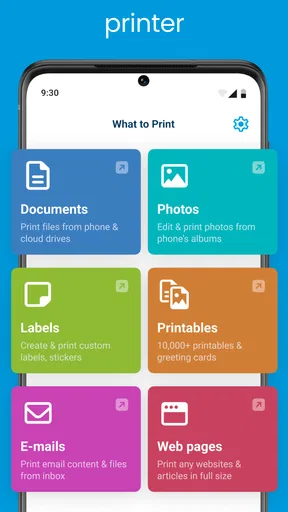
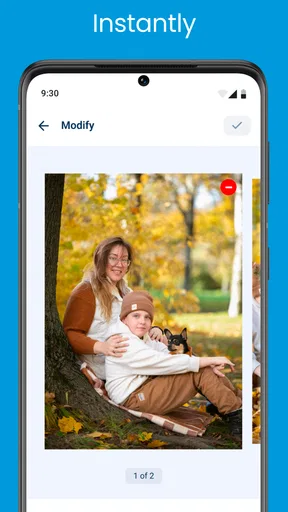
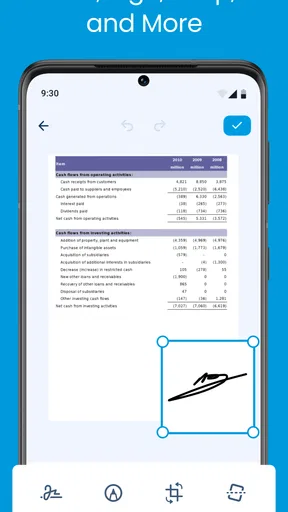
What impressed me most was the range of features packed into this app. From printing documents and photos to scanning and sharing files, it covers all the bases. I particularly loved the photo editing options — you can tweak brightness, contrast, and even crop images before printing, which is a total game-changer for printing those Instagram-worthy shots.
Moreover, the app supports a variety of file formats, including PDFs, Word documents, and JPEGs. I tested it with a few different file types, and each printed without a hitch. The print quality was top-notch, almost like using professional printing services but right from my phone.
Seamless Integration and Compatibility
One of the standout features is the app's compatibility with a wide range of printers. Whether you own an HP, Canon, Epson, or Brother, chances are, Smart Printer: Mobile Print has you covered. I connected it to my Canon printer, and the integration was seamless. The app automatically detected my device, saving me the hassle of manual configuration.
Additionally, for those of us who like to live in the cloud, the app allows you to print directly from Google Drive, Dropbox, and even email attachments. This cloud integration ensures that you can print important documents from anywhere, anytime.
User-Friendly and Reliable
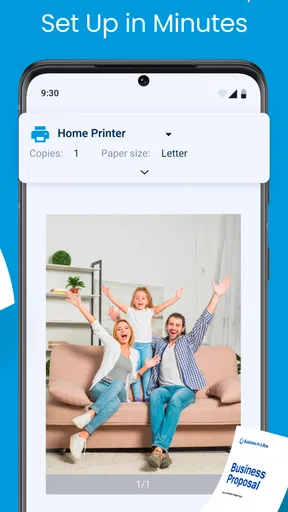
Usability is key in any app, and this one scores high on that front. The interface is straightforward, with large icons and clear labels that make navigation a breeze. I especially appreciated the preview feature, which allowed me to see exactly what my printout would look like before hitting the print button. This little touch helps avoid any printing mishaps and wasted ink.
The app also worked flawlessly every time I used it, without any crashes or bugs. Reliability is crucial, especially when you’re relying on it for important tasks, and I was pleasantly surprised by how stable the app was throughout my testing.
A Few Considerations
While Smart Printer: Mobile Print is packed with features, there are a couple of things to note. Some advanced features, like borderless printing and advanced photo editing tools, are only available in the premium version. However, the free version is robust enough for most everyday printing needs.
Additionally, while connecting via Wi-Fi is a breeze, setting up a USB connection can be a bit cumbersome if you're not using a modern printer. It’s not a deal-breaker, but something to keep in mind if you're using older equipment.
Final Thoughts
All in all, Smart Printer: Mobile Print is a fantastic tool for anyone looking to print documents and photos directly from their mobile device. It’s user-friendly, packed with features, and compatible with a wide range of printers. Whether you need to print a last-minute report or a batch of photos, this app has got you covered.
If you’re often on the go and need a reliable way to print from your phone, I’d highly recommend giving this app a try. It’s a small download with a big impact, and it might just become your new favorite mobile tool.
Privacy and Permissions
See what permissions an app requests and how it handles your data.
- Contacts
- read your contacts
- Location
- approximate location (network-based), precise location (GPS and network-based)
- Photos/Media/Files
- read the contents of your USB storage, modify or delete the contents of your USB storage
- Storage
- read the contents of your USB storage, modify or delete the contents of your USB storage
- Camera
- take pictures and videos
- Wi-Fi connection information
- view Wi-Fi connections
- Other
- view network connections, pair with Bluetooth devices, access Bluetooth settings, change network connectivity, allow Wi-Fi Multicast reception, connect and disconnect from Wi-Fi, full network access, control vibration, prevent device from sleeping, Google Play license check
Verdict
Strengths of Smart Printer: Mobile Print
- Easy to connect with multiple printer brands.
- Supports a wide range of file formats.
- Intuitive user interface for quick navigation.
- Offers cloud printing from major services.
- Customizable print settings for detailed output.
Limitations of Smart Printer: Mobile Print
- Limited free version features available.
- Occasional connectivity issues with older printers.
- No direct support for some printer models.
- In-app ads can be distracting at times.
- Subscription model for advanced features.
Other Releases by Astraler
View All
DMV Permit Practice Test 2026
Education4.7

LandMap: Property Line Finder
Maps & Navigation3.8

enRoute Delivery Route Planner
Maps & Navigation4.3
Similar Picks in This Category
View All
Google LLC4.0

Gboard - the Google Keyboard
Google LLC4.5

Google Play services
Google LLC4.3

Google Play Store
Google LLC4.9

Files by Google
Google LLC4.5

SHAREit: Transfer, Share Files
Smart Media4U Technology Pte.Ltd.4.3
Frequently Asked Questions
What devices are compatible with Smart Printer: Mobile Print?
Smart Printer: Mobile Print is compatible with most Android and iOS devices. Ensure your device is running on Android 5.0 or higher, or iOS 11.0 or later. Additionally, check if your printer supports wireless printing, as the app requires a Wi-Fi-enabled printer to function effectively.
Does Smart Printer: Mobile Print support all printer brands?
The app supports a wide range of popular printer brands, including HP, Canon, Epson, and Brother. However, it's advisable to check the app's compatibility list, available on the official website or app store page, to confirm support for your specific printer model before downloading.
What types of files can I print using Smart Printer: Mobile Print?
Smart Printer: Mobile Print supports various file formats, including PDF, DOC, XLS, JPEG, and PNG. This versatility ensures you can print documents, spreadsheets, and images directly from your mobile device, making it a convenient tool for both personal and professional use.
Is an internet connection required to use Smart Printer: Mobile Print?
An internet connection is not necessary if your device and printer are connected to the same Wi-Fi network. However, accessing cloud-based documents or updates may require internet connectivity. For optimal performance, ensure your printer and device are connected to a stable network.
Are there any in-app purchases or subscriptions in Smart Printer: Mobile Print?
Smart Printer: Mobile Print offers a basic free version with essential features. However, for advanced functionalities such as multi-page scanning or enhanced print quality settings, you may need to purchase a subscription. Review the app's pricing details on the app store to understand the available options.
